

The last day to purchase a license for the current fiscal year is April 27th, 2026. No licenses will be issued during the month of May. Any requests will be processed starting June 1. This is a Microsoft contract reason and not something Ohio State or SHI control. The Microsoft 365 Copilot EDU Add-on will be removed from the SHI site during the month of May or until SHI is given the permission to sell again.
There is a process in place for areas within the university to purchase licenses for users or group of users. We know and recognize that the ordering process is very complex and can take some time to process. It is complicated by licensing constraints, as Microsoft's preference for institution-wide agreements limits our flexibility for small group or individual license purchases.
This is NOT the process for Medical Center employees. Medical Center employees will need to follow the process at the top of this page for their instance of Microsoft 365.

- Start by logging into Workday using your Ohio State username and password.
- Hover over Organization in the left navigation panel and select Requisitions. From there follow the instructions laid out by the Workday team for Connect to a Supplier Website.
Look for Microsoft Reseller Software House International (SHI) website to connect to. Select the Connect button to connect to the SHI site.

This will show the SHI Catalog for the university. By default, the Featured Standards should be displayed. These are the most common licenses that may be purchased.
Select Microsoft 365 Copilot EDU Add-on. Choose the number of licenses to be ordered.- Things to note:
- The current cost is $16.92/month per license.
- The pro-rated cost will be provided based on what month of the current fiscal year the request is made.
- A license must be purchased for each user who will be utilizing the specific license. They will be assigned to each user.
- The cost is for the remainder of the Microsoft licensing year, which ends on May 31st.
- The last day to purchase a license for the current fiscal year is April 27th, 2026. No licenses will be issued during the month of May. Any requests will be processed starting June 1. This is a Microsoft contract reason and not something Ohio State or SHI control. The Microsoft 365 Copilot EDU Add-on will be removed from the SHI site during the month of May or until SHI is given the permission to sell again.
- The current cost is $16.92/month per license.
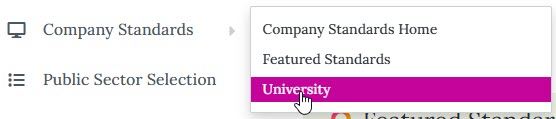
If you navigate away from Featured Standards, hover over Company Standards and select University to see all of the licensing options from SHI.
- Things to note:
- Once the correct number of licenses has been selected, select Add to Cart and then Shopping Cart to complete the process. After selecting the green Check Out button, the final screen will allow you to keep shopping or to Finish the order. Select Finish to complete the process on SHI. The screen will update to bring you back to Workday and your requisition. Click Checkout to complete the ordering process.
- SHI will complete the purchase within their system and reach out to Microsoft to have the licenses assigned to The Ohio State University.
- This is not an immediate action when you get notified from Workday that your PO has been completed and sent to the vendor. Please be patient in this process and follow the procedure to avoid any additional delay.
SHI will notify you that this is has been processed and is available for deployment. You CANNOT move forward with the process UNTIL you receive the notification. Attempting to move forward will delay the process.
Once the email has been received continue to step 7.- Once the notification from SHI has been received, submit a Service Now generic request with the IT Service Desk http://go.osu.edu/it.
In the request provide the following information:- PO Number
- Name/description of licenses purchased
- Quantity of licenses purchased
- Email Address for person(s) that need to be assigned a license
- Example – jones.1234@osu.edu
- The First and Last Name for each listed email address.
- Please state in your request to have this request assigned to the "Microsoft Copilot Support" assignment group.
- The ticket will be assigned to the appropriate OTDI assignment group to assign the license(s) to the user(s).
- The OTDI Services Team will verify licenses have been assigned to the tenant. Once verified, the license(s) will be assigned to the users. The requestor will then be notified that they have been assigned.
- If the licenses have not been assigned to the tenant, the UES/O365 team member will reach out to the requestor to inform them and will work with the requestor and SHI to resolve the licensing issue.
- Once a license has been purchased, you will not need to submit a new purchase order (PO) in Workday when your license comes up for renewal. When the Microsoft Agreement year ends, typically in the April/May timeframe, renewal notices will be sent to the individuals who submitted the original POs. At that time, they’ll be asked whether they would like to renew their license(s) for the upcoming year. A new PO is NOT required in Workday for these renewals—renewals will be processed using the existing PO unless changes are needed.
- The requestor will be responsible for responding to the notice about renewals for the next year.
- Any changes to the license assignment of the individual users will need to be requested. Please submit a Service Now generic request and have it assigned to the "Microsoft Copilot Support" Assignment Group to request the updates.
- The last day to purchase a license for the current fiscal year is April 27th, 2026.
- No licenses will be issued during the month of May. Any requests will be processed starting June 1.
- This is a Microsoft contract reason and not something Ohio State or SHI control. The Microsoft 365 Copilot EDU Add-on will be removed from the SHI site during the month of May or until SHI is given the permission to sell again.
Last modified: Mar 23, 2026