

Table of Contents
Copilot in Powerpoint is literally your virtual assistant, helping you in all tasks from creating a new powerpoint presentation, creating a new one from an existing document, adding engaging content and transistions or even help structure your presentation.
To work with Copilot in Powerpoint start by opening the Copilot panel using the Copilot button on the ribbon panel.
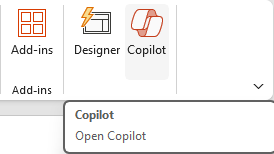
The Copilot panel will open on the right hand side of the screen. Within the panel you have the ability to create a new presentation multiple different ways.
Create a New Presentation
Create New Content
Clicking Create a Presentation sets Copilot to chat mode and you can provide a topic for your presentation. You can type the prompt in directly or you can use the Microphone button

to dictate your prompt. You can aslo click the View pompts button

to display a list of available prompts.
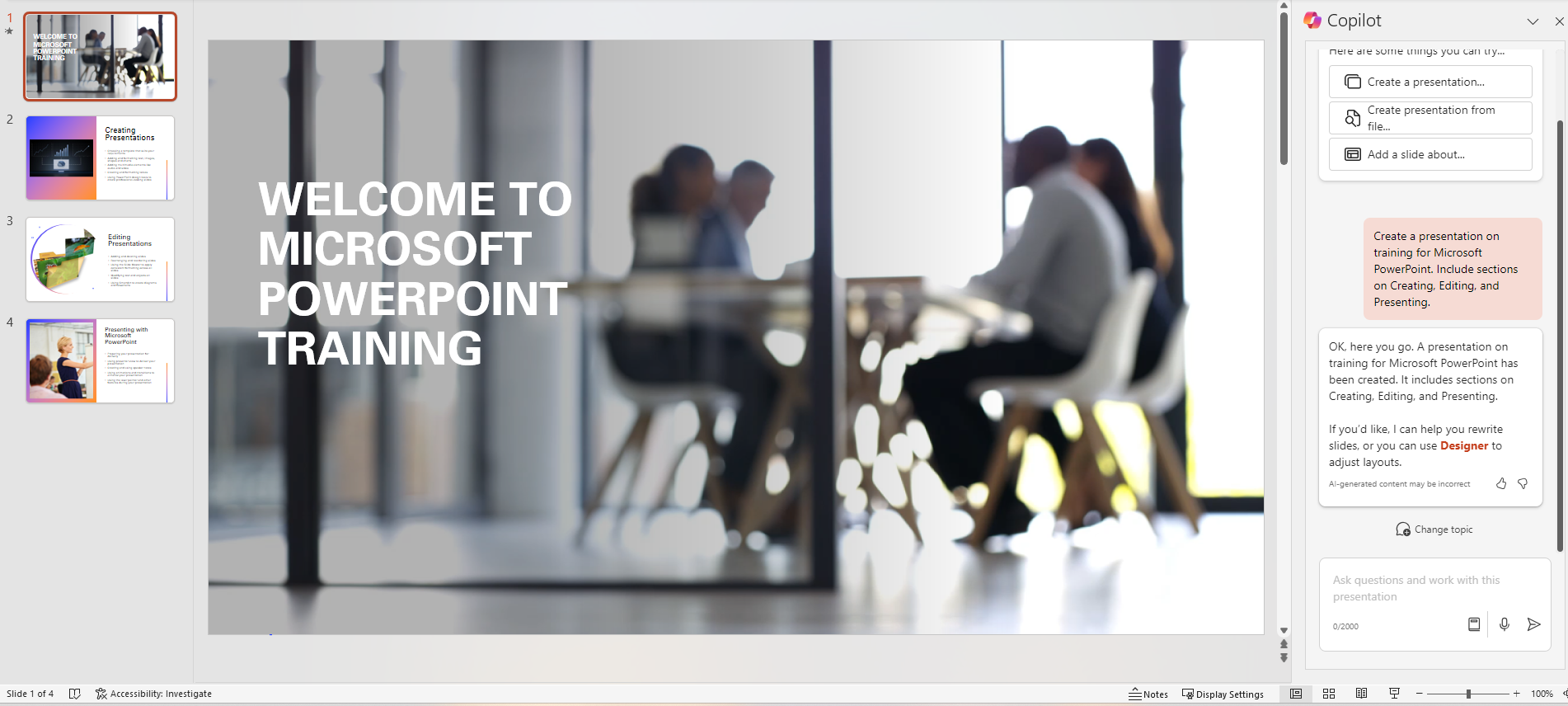
In this example, we used the prompt "Create a presentation on training for Microsoft PowerPoint. Include sections on Creating, Editing, and Presenting." From here you can work manually or continue to use Copilot to enhance and expand the content that was generated.
Transform Written Documents into Presentations
Powerpoint has always had the ability to import different document types and create a presentation, however Copilot provides you many more options and abilities to generate the content. In order to use a file to create a presentation you will have to link the Copilot prompt to the file. That means the file must be located in OneDrive, and it is recommended that it has been opened recently allowing the Semantic Indexing to catch up. Once Copilot finds the file the panel will update letting you know that it is creating the content for you.
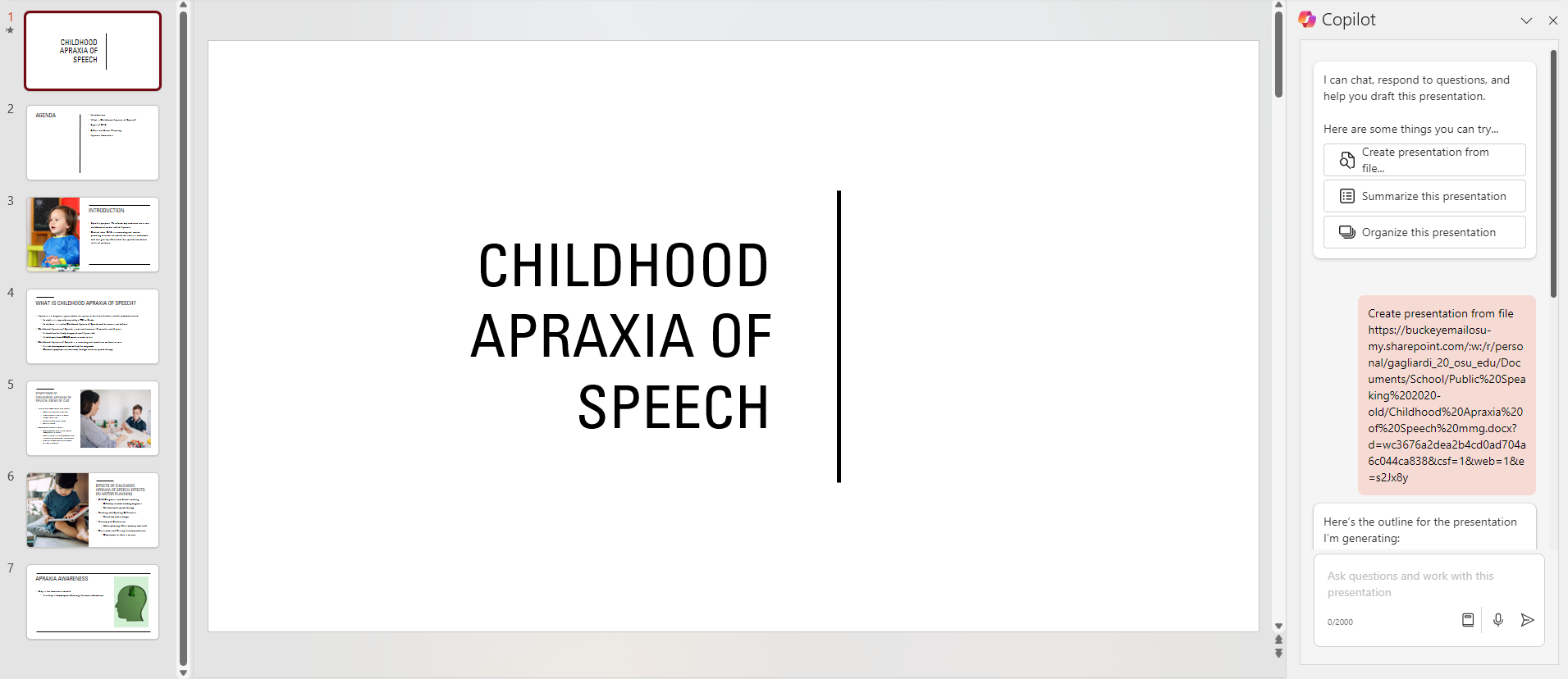
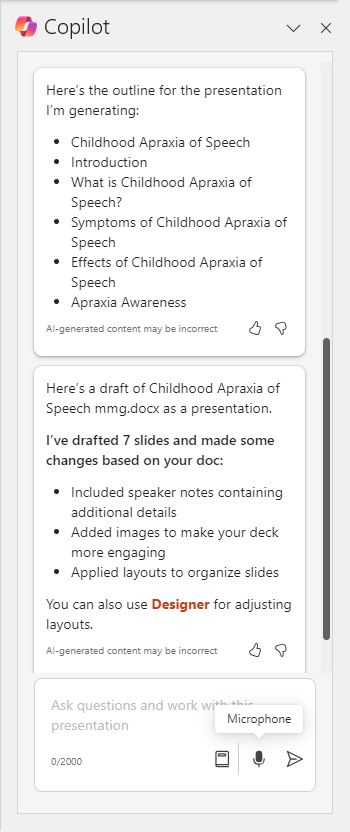
In this example I used a word document that was a speech outline written in Microsoft Word.
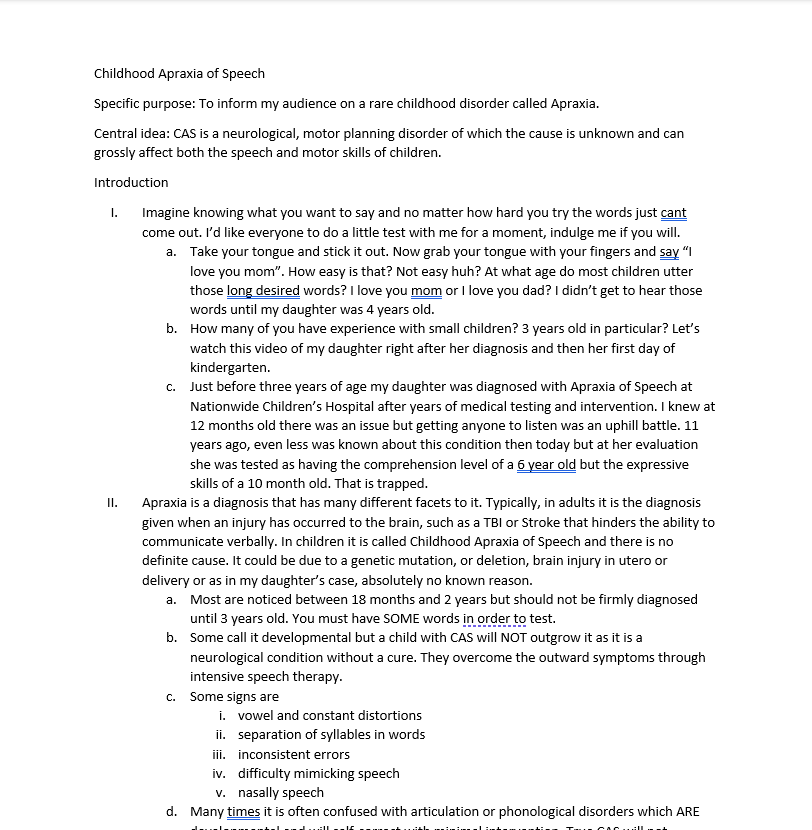
Once the presentation is created the Copilot panel will update telling you exactly what it did and offers to guide you through making your content more engaging.
Adjust your Content
Copilot offers a dynamic way to edit your content to enhance your presentation and increase engagement. You can use chat prompts to have Copilot add slides, add specific images, and recommend screen timings. For example, in the Powerpoint Training presentation above I could ask Copilot to "add a new slide about Transitions after the Editing slide". Copilot will add the slide. This is still in preview mode and at times the slide may not be generated with exactly the same formatting.
Last modified: Feb 19, 2025