

Table of Contents
Within Microsoft Word, Copilot will allow you to create or recreate content using brief prompts and information from other files and the internet.
When working in Word you can either draft a brand new document, or work within the Copilot panel in an already exisiting document.
When you open a new document you will notice the Copilot icon

at the top of the blank page. Clicking the Copilot icon on the page will open the Copilot new draft prompt.
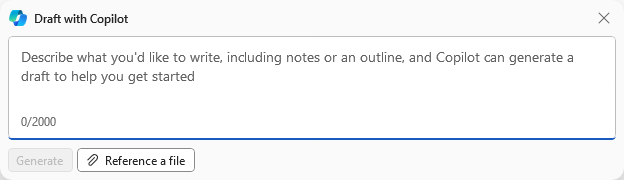
You can type your prompt to your assistant and add a file from your last three referenced files (if you recently created or received the file it may take a few minutes to appear due to the Semantic Indexing, just be patient).
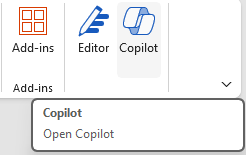
Additionally you can work with the Copilot panel which will open on the right hand side of the screen. To open the Copilot panel click the Copilot button in the ribbon panel at the top of the page.
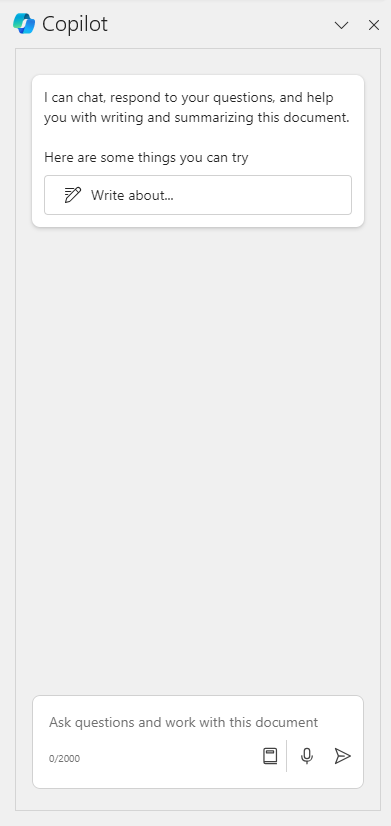
In the panel you can prompt the assistant to help you create, summarize or format the document. Learning how to prompt Copilot is the most effective way to use Copilot. To learn more about prompting please see Prompting in Copilot.
Working in a New Draft
Whenever a new document is created using Copilot, it creates the document in Copilot draft mode. When working in draft mode you have two options for updating.
Regenerate a new draft. The Regenerate button can be clicked to create an entirely new version of the document based upon the initial prompt. This will leave you with two versions of the document. Your original version and a new draft based upon the original document.
Update the current draft. If you like the draft but are not done and you would like Copilot to continue to add and make changes, then just make the prompt and request. If you request Copilot to make changes to the current draft it generates a new draft with the requested changes applied to it.
At the very end of your new document created with Copilot you will see the Copilot window with the following options:
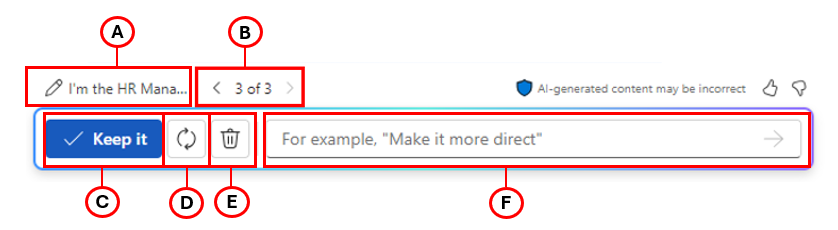
- A - Edit prompt. Selecting this field displays the entire prompt that you initially entered and allows you to edit it. When you submit the edited prompt, Copilot creates a new draft based on the edited prompt.
- B - Current draft. When you select the Regenerate icon or you enter a prompt with a change request, Copilot creates a new draft while retaining access to the previous ones. The current draft being displayed in this image is draft 3 of 3. To review an earlier draft, select the backward arrow (<). To go from an earlier draft to a later draft, select the forward arrow (>). In this example, if you select the backward arrow, you would go from draft 3 of 3 to draft 2 of 3. Draft 2 would be displayed, which would now be the current draft.
- C - Keep it. Once you're satisfied with the current draft being displayed, select the Keep it button to change the current draft to a Word document. In effect, you move from Copilot draft mode into normal Word mode and this Copilot window disappears. You can continue using Copilot to update the document, but since you're no longer in draft mode, you must use the Copilot pane to do so. To open the Copilot pane, select the Copilot option on the Word ribbon.
- D - Regenerate. If you're not satisfied with the current draft, select the Regenerate icon to have Copilot to create an entirely new version from scratch.
- E - Discard it. If you want to scrap all the drafts that Copilot created and start over from scratch, then select the Discard it icon. Doing so returns you to a blank document. Select the Copilot icon to display the Draft with Copilot window to begin again.
- F - Prompt field for change requests. If you wish to update the current draft, enter your request in this prompt field and select the Generate icon (arrow) in the right-side of the field. If you submit a request to add or change something in the current draft, Copilot generates a new draft of the document with the changes applied.
Working with an Existing Document
When you open an already existing document within Microsoft Word you will need to interact with Copilot using the Copilot panel. Click the Copilot button on the ribbon panel to open Copilot.
The Copilot panel allows you to interact with the document and perform different tasks. Some of the actions you can take are:
- Generating a summary of your current document.
- Change formatting and language.
- Ask questions about the content of the document.
Chatting with Copilot allows you to discuss, iterate and refine details of your document using AI. Remember the key components of prompting. For a refresher please see Prompting in Copilot. Some different chat commands you can try are:
For an existing document:
- What are the key points of the document?
- Create a summary of this document.
- Is there a call to action in this document?
For external information:
- Can you provide a list of hotels in San Jose, CA?
- List all of the 4 star hotels in San Jose, CA in a bullleted list.
- Give me an example of a poem that talks about the beauty of San Jose.
Remember, Copilot is in pilot and due to that things can change at a moments notice. Also it can take some time for the AI to respond as they generate their response. This is known and how the tool currently works. We cannot speed up the process.
Linking Files in Copilot in Word
One very popular feature of Copilot is the ability to create a new document based upon information held in another document. For example, writing a proposal based upon an outline. You can do this by linking the file to a Copilot prompt. You can link multiple file but they MUST be stored in a OneDrive account. This will not work with local files.
There are multiple ways to link the file to a Copilot prompt:
- Select the file from the Most Recently Used file list. When you open or save a file, the application adds the file to its Most Recently Used (MRU) list. When you work in Copilot and you select the Reference this file button (or Reference this content, depending on the app), Copilot displays a drop-down menu containing the three most recently used files. It also displays a link that enables you to browse through all the files in the MRU list.
- Copy the path to the file in File Explorer. In File Explorer, you can locate the file in OneDrive, right-click on the file, and select the Copy as path option. Doing so copies the file's URL to your clipboard. In the Copilot prompt, you can enter a forward slash (/) and then paste in the URL.
- Open the file and copy its path using the Share option. You can open the file in its corresponding app, then on the menu bar, select the Share option. In the drop-down menu that appears, select the Copy Link option. In the Copilot prompt, you can enter a forward slash (/) and then paste in the URL.
Last modified: Feb 19, 2025