

Before using any Microsoft 365 services please review the information on sharing content, acceptable use, general questions, and other important items to be aware of on this page Microsoft 365 Important Service Usage Information
Your profile picture is part of your Microsoft 365 account and will appear in different Microsoft 365 applications such as Outlook and Teams. Please remember that the photo which appears here represents both you and your role within the university. Make it one you are proud to have reflect you and The Ohio State University.
To set or change your profile picture start by visiting https://it.osu.edu/microsoft-365 and logging in using your Ohio State username and password. If you are having trouble with your password please contact the IT Service Desk at 614-688-HELP(4357).
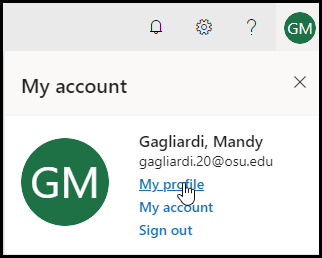
Once logged in click on the initials logo in the upper right hand corner of the screen to open a menu.

Once the menu opens click My Profile to open your profile screen.
At the top of the page click on the camera button to set a picture.

Next, click the link Upload a new photo.

Choose the photo that should appear in your profile. Please remember this image will show up throughout Office 365. Click Open to continue. If necessary, use the slider to zoom in and out on the picture then click Apply.

Click Done once the picture is uploaded.

Last modified: Apr 29, 2025