

It is recommended to use the Outlook Web App to check the current mailbox storage size.
Start by logging into the Microsoft 365 account using your Ohio State Username and password at https://it.osu.edu/microsoft-365.
Once logged in, navigate to the Outlook Web App by clicking the Outlook icon on the left side of the screen.

In the upper right hand corner of the screen click the gear icon to open the settings window.

In the Settings window. click Account on the left hand side of the screen and then Storage.
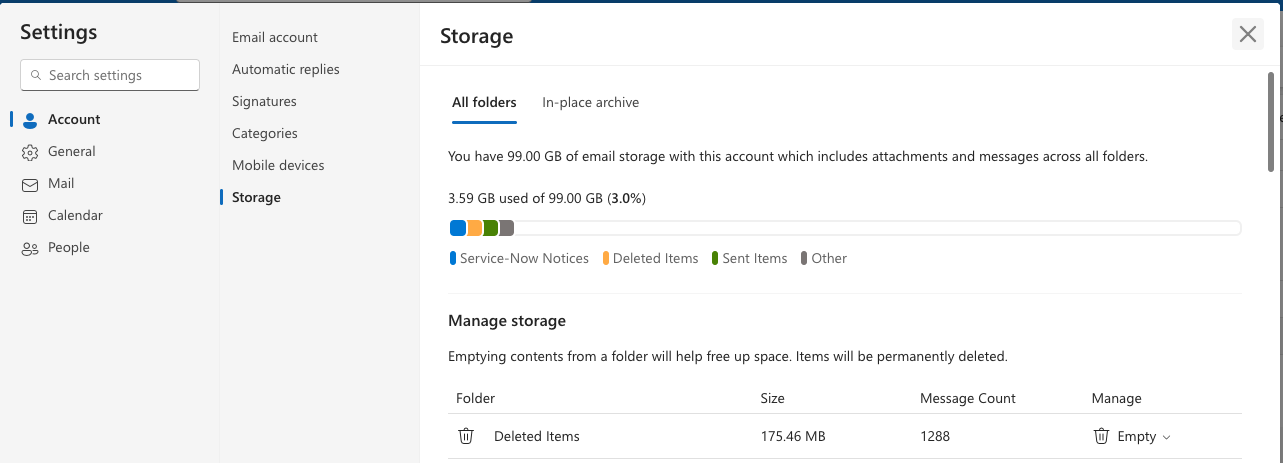
From here you can see your total email storage, each folder's storage, and delete the items in the folders that are older than a fixed period of time using the Empty button on the right side of each folder entry. You must follow appropriate university records retention guidelines when deleting items.
When you clean up your mailbox by deleting unnecessary files to free up space, you must remember to also EMPTY the recycle bin/deleted items folder as well to actually free up the space. Your recycle bin counts towards your mailbox size.
Last modified: Oct 10, 2025