

In order to work efficiently and effectively with your email client you should spend time organizing the content. Within the Outlook environment, you can set either Retention policies or Archiving policies. Depending on the interface you may see the word "tag" or "label" instead of policy. A policy can be set on a folder or an object. By default, all objects inherit their parent object's policy. So in your inbox, all items inside the inbox follow the inbox policy. The university does not set a default retention or archiving policy. You are responsible for ensuring you are following your area's retention policies pertaining to your type of work. When you clean up your mailbox by deleting unnecessary files to free up space, you must remember to also EMPTY the recycle bin/deleted items folder as well to actually free up the space. Your recycle bin counts towards your mailbox size.
University Libraries has extensive information on managing emails. These guidelines can be helpful because not all records are equal in value or retention period. The retention period for each message is based upon the content and informational value of the message, not the technology through which it is transmitted or stored.
To set a policy start by finding the folder or object you would like to work with, right-clicking on the object, and selecting Properties.
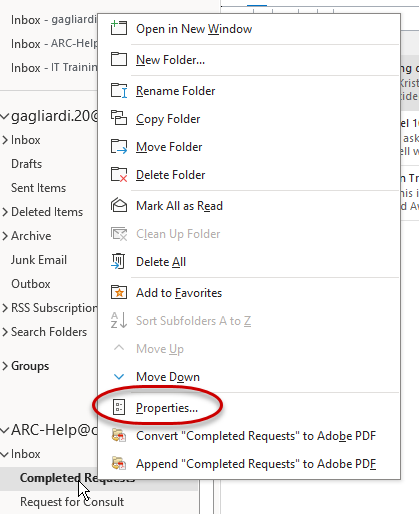
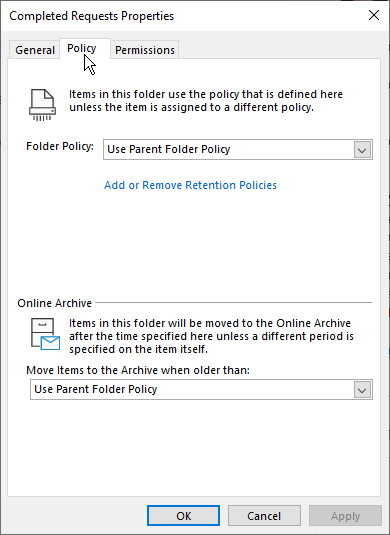
This will open the Properties window. Click the Policy tab at the top to see the current policies.
Retention Policy
The top half of the window discusses Retention policies. A Retention policy tells Outlook it is okay to empty the folder, or delete the email, after a certain time frame. To set your policy drop open the Folder Policy menu and choose the time frame that you need. When you clean up your mailbox by deleting unnecessary files to free up space, you must remember to also EMPTY the recycle bin/deleted items folder as well to actually free up the space. Your recycle bin counts towards your mailbox size.
The options available are:
- 1 Month Delete (30 Days)
- 1 week Delete (1 week)
- 1 Year Delete (1 Year)
- 10 Year Delete (10 Years)
- 2 Year Delete (2 Years)
- 3 Year Delete (2 Years)
- 4 Year Delete (4 Years)
- 5 Year Delete ( 5 Years)
- 6 Month Delete (6 Months)
- 6 Year Delete (6 Years)
- 60 Day Delete (60 Days)
- 7 Year Delete (7 Years)
- 8 Year Delete (8 Years)
- 9 Year Delete (9 Years)
- 90 Day Delete (90 Days)
- Never Delete (never)
Archiving Policy
The bottom half of the window discusses Archiving policies. An archiving policy tells Outlook it is okay to archive the folder or object after a certain time frame. An Archive is an online location where your items are stored, but not immediately accessible to your client. It would need to be downloaded to your device to see it. This helps keep your inbox size smaller.
The options available are:
- One day
- 15 days
- 60 days
- 90 days
- 6 months
- 1 year
- 2 years
- 3 years
- Never
Remember, the university does not set a default retention or archiving policy. You are responsible for ensuring you are following your area's retention policies pertaining to your type of work.
Last modified: Nov 17, 2025