

Table of Contents
Teams allows owners to invite members to a Team that are not part of the organizational tenant that the Team is located in.
For example, you may invite a member of a research team that is not part of the univeristy and uses a Gmail account. As the owner of the Team you may need to share information with them on how they are expected to access the Team. This is especially important if they do not use the Teams application.
Any external guest invited will have slightly more limited abilities compared to internal members.
How do you invite an external person to be part of a Team?
Open Microsoft Teams on your device.
Move to the team where you want to invite the external guest.
Click on the three dots (More options menu)

next to the team name, then select Add member.
In the Add members window, type the email address of the person you want to invite. This needs to be the email address that your guest will use every time they want to interact with the team.
Teams will recognize that the email address is external and will label it as a guest. Click on Add [email address] as a guest.
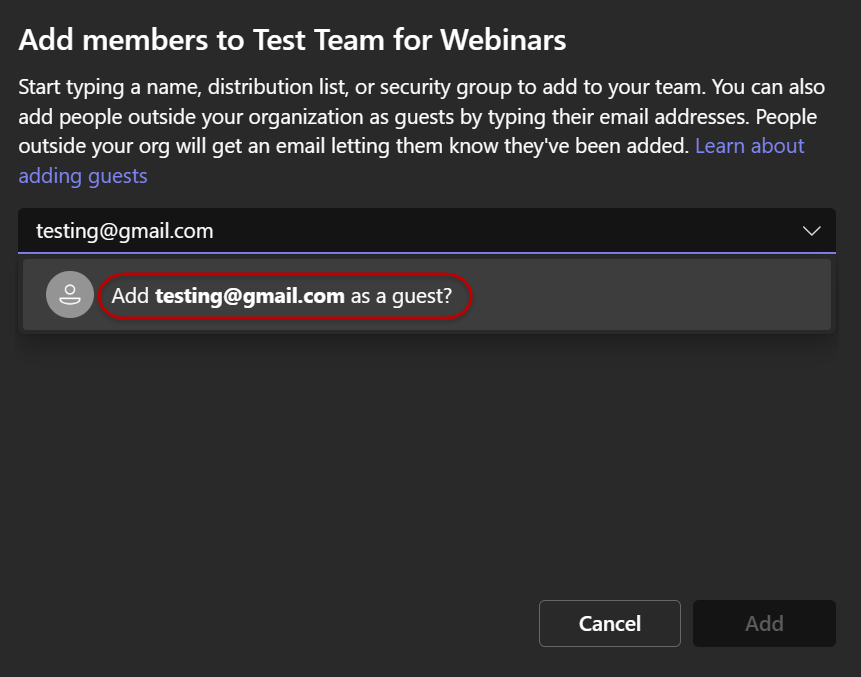
Click Add to send the invitation. The external guest will receive a welcome email with instructions on how to join the team.
When that person no longer needs to be part of the Team you should remove them from the Team, as you should with any type of member.
How does my guest access the Team once invited?
The guest will receive a welcome email. Their experience will vary depending on if they already use Microsoft Teams and if they already have a Microsoft account.
In the welcome email there will be information that tells them who sent the invitation, the name of the Team, and a link to open Microsoft Teams.
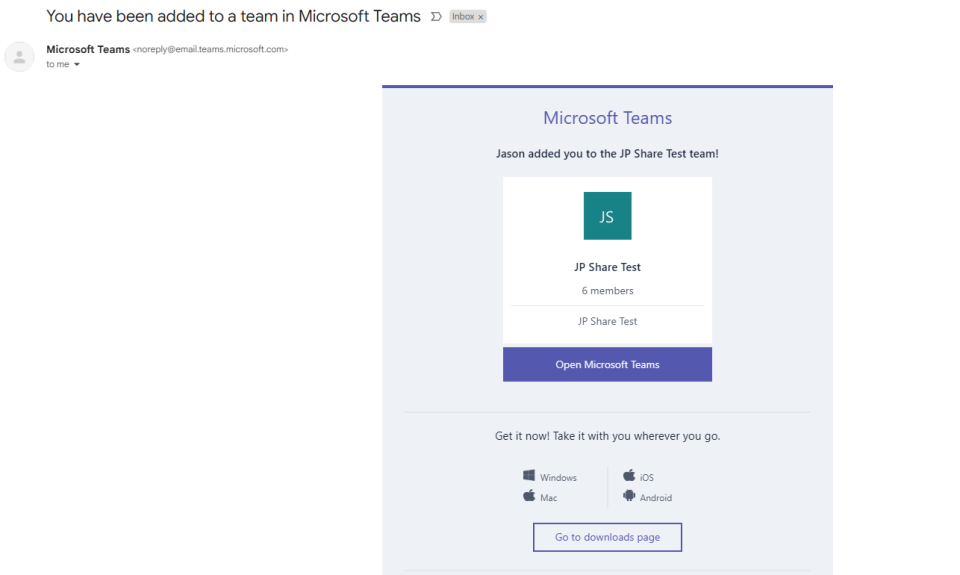
The guest can click the link Open Microsoft Teams or they can go to https://teams.microsoft.com in a web browser. After they have accessed the Team the first time they can choose to always use the web address and they do not have to save the invitation email if they do not want to.
The guest must sign into Microsoft Teams using the same email address you sent the invitation to throughout this process.
The guest will be asked to log in. If they already have a Microsoft account they can continue and complete the log in process.
If they do not have a Microsoft account with that email address, they will need to enter the email address into the field and click Next.
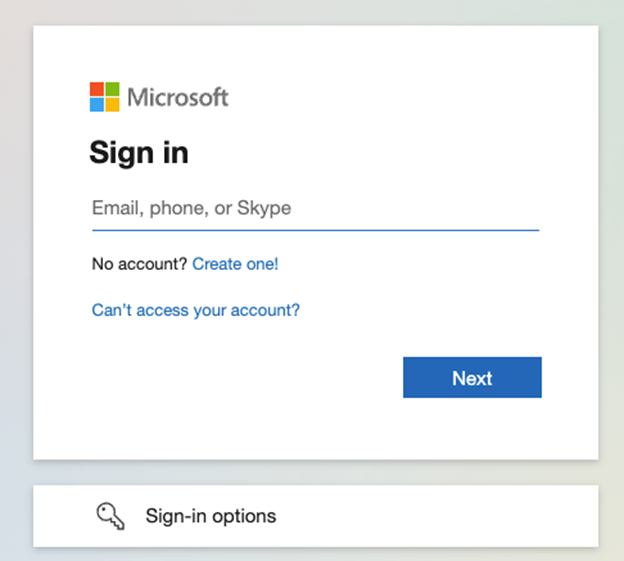
Microsoft will check for a Microsoft account, and not finding one, it will display a message telling guests to obtain a one-time code. Click the link sign in with a one-time code sent to your email.

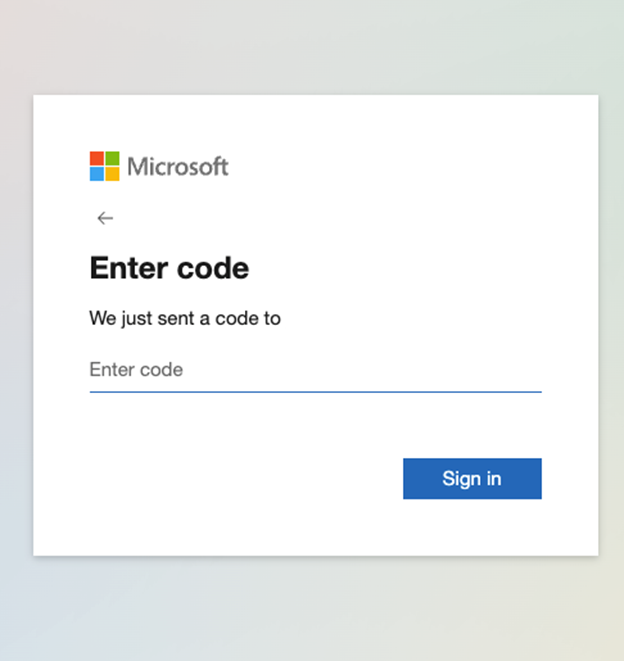
The screen will update asking for a code and a numeric code will be sent to the email address provided.
Once the guest receives the email they will enter the code in the window and click Sign in.
After Signing In
Once the guest has authenticated into Microsoft they will be asked where they want to start. To collaborate in the team they were invited to they will need to click on The Ohio State University to access our tenant.
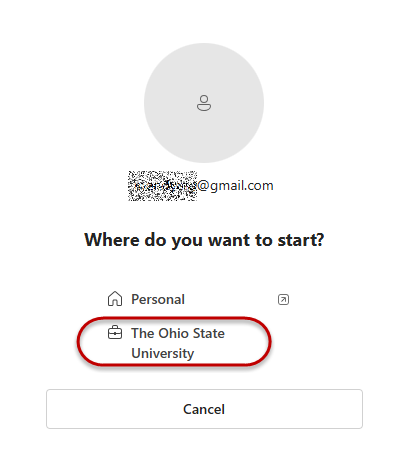
If they use their email as part of multiple Teams organizations they may need to switch between them.
The guest will need to review and accept the Terms of Use and click Accept in the agreement window.

In the Sign in Trust window click Continue.
Additional Resources
Please see these additional resources to assist your guest in participating in the team to their fullest potential.
Last modified: Mar 18, 2025