

Workday Everywhere is an application that can be installed within Microsoft Teams that allows for basic Workday tasks to be performed within Teams instead of having to log into Workday directly. This article outlines common Workday tasks for employees that can be completed within Workday Everywhere in Teams.
Table of Contents
Request Time Off
From the Workday Everywhere application in Teams select Take Time Off in Quick Actions.
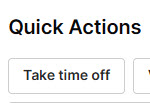
This will start a Chat session. A notification that Workday sent a card will appear. The chat will ask for the start and end dates of the time off request. For a single day only one date needs to be entered.
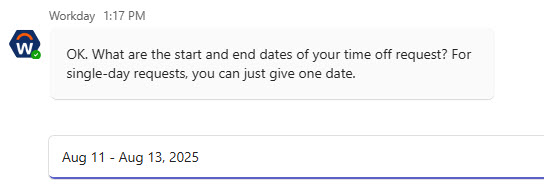
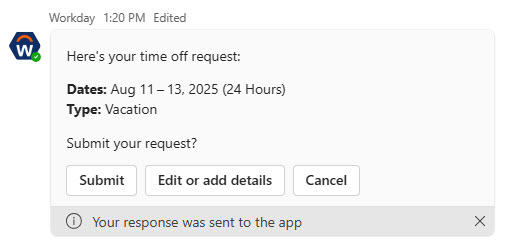
The chat will walk you through the time off request. Verify the details are correct before submitting. If the date needs to be changed sending the message “edit” will allow a date change before the leave type is selected.
If the time off request is incorrect, select Edit or add details to make changes.
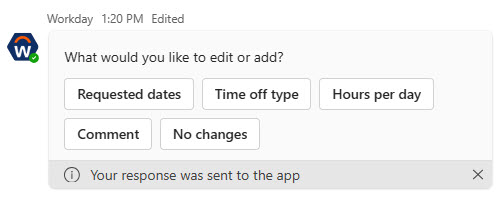
The changes that can be made are:
- Requested dates
- Time off type
- Hours per day
- Comment
- No changes (cancels the edit)
After sending the requested information, the request will be displayed again, providing another opportunity for review before submitting. Select Submit and the request will be sent to the appropriate approvers.
On the Workday Everywhere dashboard the My Calendar will show the request as “Pending time off request” until it is approved.
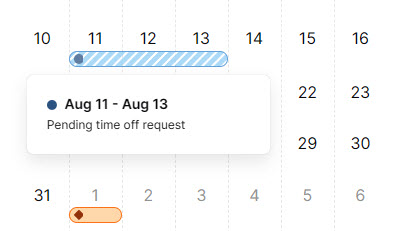
View Absence
My Calendar will display all the different Important Dates color and symbol coded.
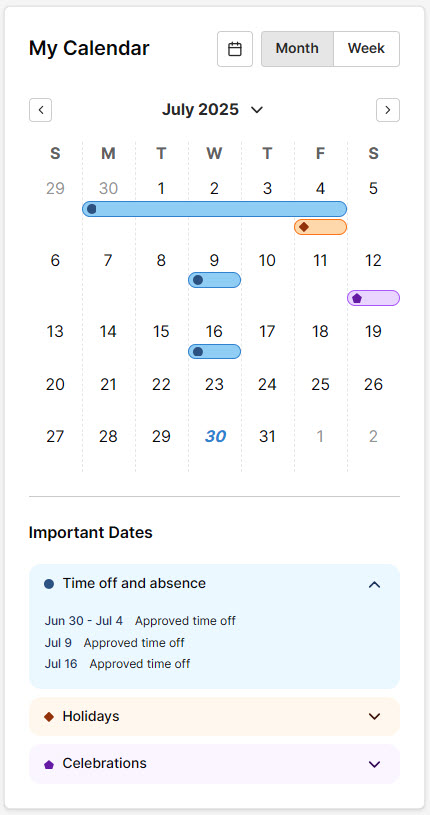
Holiday Benefit Pay will appear as Approved time off in the calendar.
Correct a Time Off Request
Select Explore all under Quick Actions and select Correct time off to edit a time off request. Time off requests can only be edited if they are approved and are in the future.
Past requests and pending requests cannot be edited from Workday Everywhere.
View Time Off Balances
Time off balances can be viewed by selecting View time off balance in the Quick Actions section.
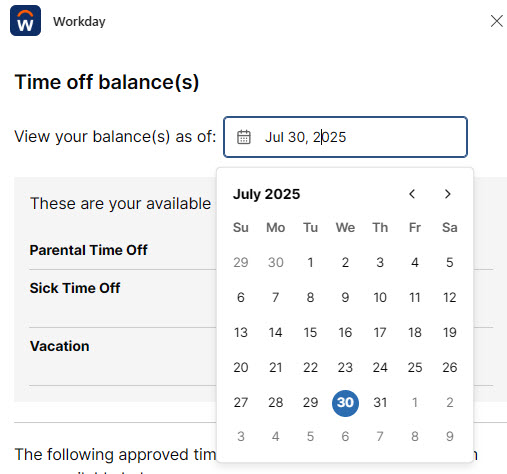
This will open another panel that displays eligible time off plan balances.
Changing the date field at the top will show projected time off balances. From here the Take time off task can be started.
Benefits
- View Dependents
- View Insurance Policies
Clicking any benefits task will bring you to Workday in your web browser, directly to the requested information.
Pay
- View direct deposit
- View tax forms
- View W-4
- View payslip
Clicking View payslip will display a summary of the last payslip on record with a link to view more detail in your web browser.
Clicking any Pay tasks will display a link to navigate directly to the requested information in Workday from your web browser.
Profile
- Change my contact information
- Change my emergency contacts
- Change my ethnicity
- Change my legal name
- Change my marital status
- Change my nationality and citizenship status
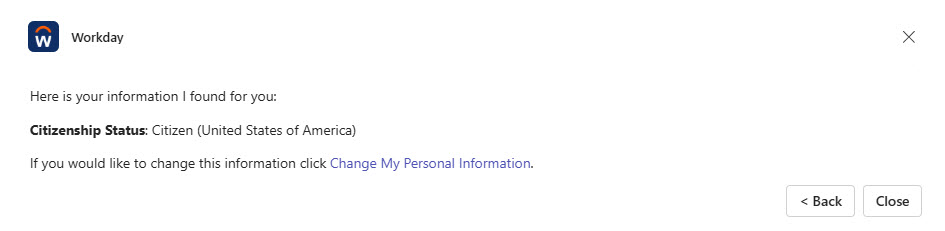
Clicking any Profile task will display a link to navigate directly to the requested information in Workday from your web browser. Workday Everywhere will display the information it currently has if it can.
Manager Tasks in Workday
With Workday Everywhere in Teams some manager tasks can be completed or started from within the application.
Time off requests
Whenever an employee submits a Time off request in Workday, a “card” will be sent to the manager of the employee in the Workday Everywhere chat, letting them know that a request was sent.
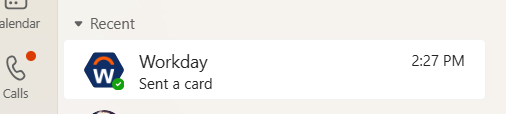
Requests route to the manager in Workday Everywhere as Chat interactions with basic request information. To view any comments on the request, managers should access the request in Workday directly.
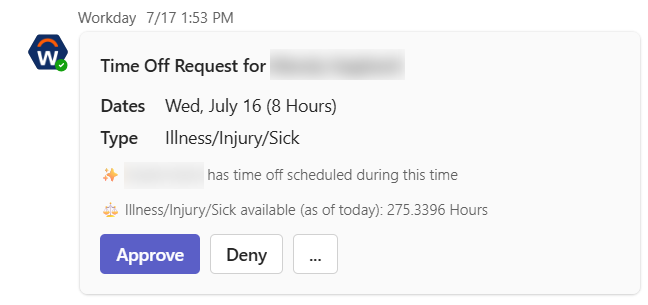
Clicking Approve will approve the Time off request. Deny will deny the request.
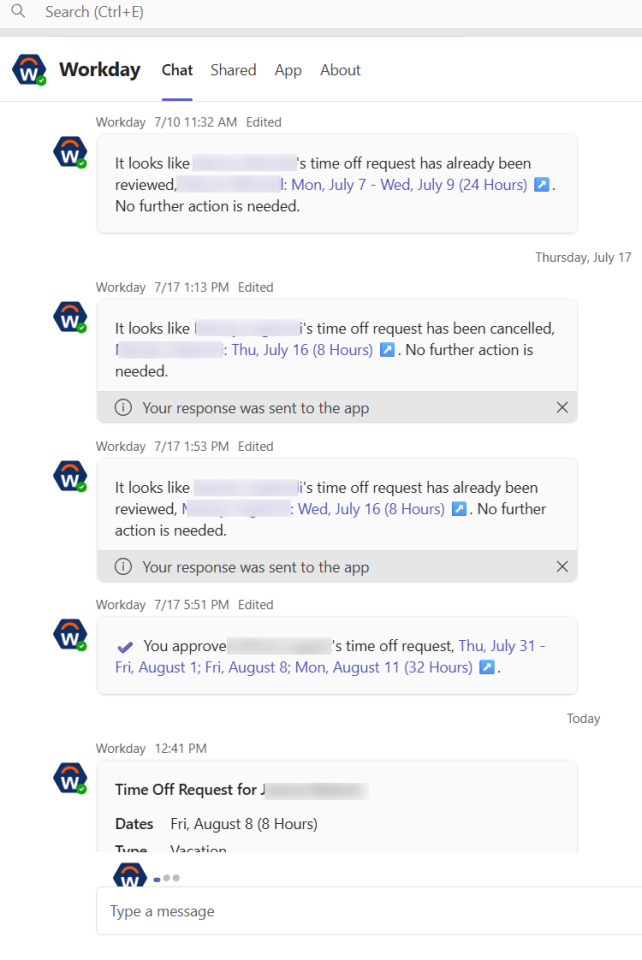
As requests are handled the chat interface will update showing what has been done, what still needs to be done and details about what actions can and cannot be taken from the chat interface.
- See Workday Everywhere in Teams for information on the Workday Everywhere application, including information on how to install it.
- Only future, approved time off requests can be edited via Teams.
- Only time off requests can be initiated in Workday Everywhere. Leave of Absence requests must be initiated via Workday directly.
- Health System employees will continue to request time off in UKG and are unable to request time off via Workday Everywhere.
Last modified: Aug 7, 2025