

Workday Everywhere is an application that can be installed within Microsoft Teams that allows for basic Workday activities and tasks to be performed from within Teams, instead of leaving the application and logging into Workday separately.
The tasks that can be performed in Workday Everywhere after it has been installed can be found in the article Tasks in Workday Everywhere.
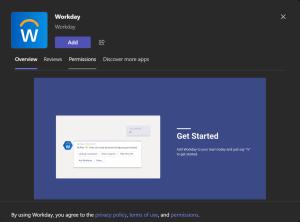
Before the application can be used it will need to be installed. Please see Installing a Teams Application for details on installing an app. Be certain to install the application called Workday. There are other applications with the word Workday in them so be certain you are only installing Workday.
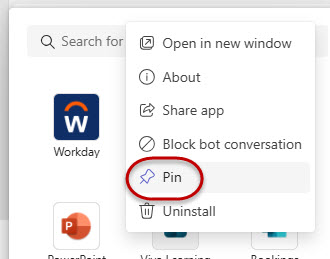
Once Workday has been installed it can be "pinned" to the navigation panel of Teams for fast easy access. Right click the name of the app and select Pin in the action menu.
At the top of the window, you can switch between Chat and App.
App is the Workday Everywhere in Teams Dashboard. The Dashboard is where new requests can be started, an overall view of tasks can be seen, and your Workday calendar can be seen. Chat is where the Tasks will be completed.

Quick Actions contain the most common tasks a Workday user may need, such as taking time off, looking over company holidays or exploring pay. Selecting the action you want to perform will start the task. Select Explore all to see the different tasks that can be started from Workday Everywhere. Some of the actions will start a chat that will walk you through the process, such as requesting time off. Others will open a card. Workday will display what information it can and may provide a link to the task within the main Workday environment.

My Tasks
My Tasks shows any Workday related tasks that you will need to work through or approve. It will only display the 10 latest tasks, but all tasks can be accessed by selecting My Tasks in Workday.
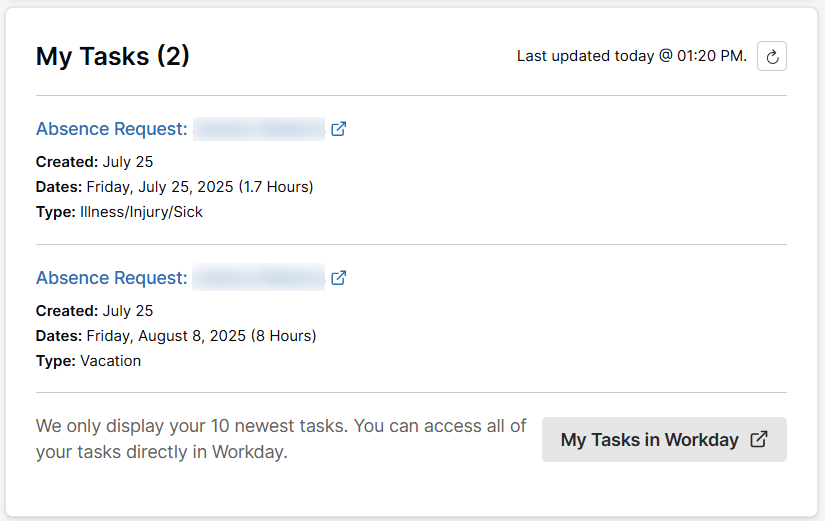
If the selected task cannot be performed within Workday Everywhere a card will pop up. Workday Everywhere will display any available information. It may also provide a link to the task within Workday using your web browser.
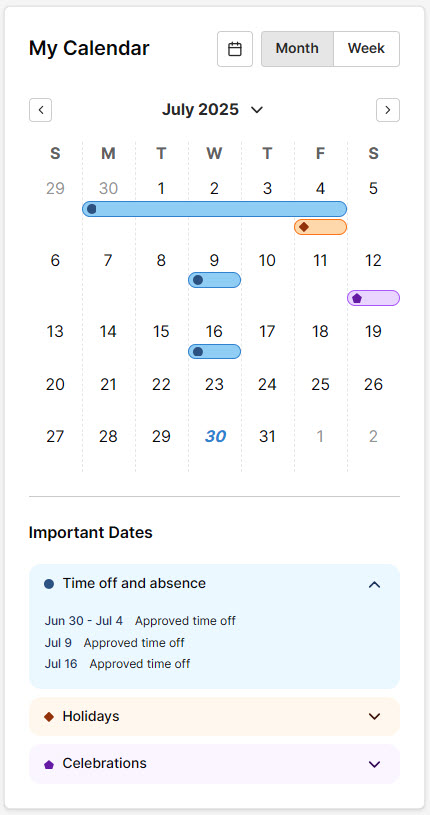
My Calendar
This will provide an overview of important Workday dates and university holidays. This is not to be confused with your Outlook calendar that holds your appointments and meetings.
Tasks that can be performed in Workday Everywhere can be found in the article Tasks in Workday Everywhere.
- Workday Everywhere can be used to perform some Workday related tasks without leaving the Teams interface.
- Workday Everywhere is not a replacement for Workday. There are tasks that cannot be completed within Workday Everywhere.
- Workday Everywhere and the Ohio State University do not always follow the same naming conventions, and we are unable to change the names of some of the items.
Last modified: Aug 15, 2025