


Microsoft has released several versions of Microsoft 365 Copilot. Two versions are available at the Ohio State University:
- Microsoft 365 Copilot Chat is provided by the university to all faculty, staff and students at Ohio State. In addition to information provided in the ARC, you can learn more about its capabilities on Microsoft’s site.
- Copilot Premium (Full License) is available for an additional licensing fee to faculty and staff at the university. This is at an extra cost to your college\department, and it will need to be acquired, approved and ordered through your department. The additional licensing allows Microsoft 365 Copilot to access your applications, combining the power of large language models (LLMs) with your data – all in the flow of work – to turn your words into one of the most powerful productivity tools on the planet.
Getting Your License
There is a process in place for areas to purchase licenses for users or a group of users. It is complicated by licensing constraints, as Microsoft's preference for institution-wide agreements limits our flexibility for small group or individual license purchases. This article give you step-by-step instructions to complete this process.
If you purchase Microsoft 365 Copilot Premium, you’ll soon begin to see the Copilot experience across your Microsoft 365 apps like Word, Excel, Outlook, and Teams after your license has been acquired and pushed to your account. The Copilot icons and features will appear anywhere from within a few minutes to within a few hours. To speed things up, we recommend restarting your apps and signing out and back in if needed. Full access to your Microsoft 365 data—such as files, emails, and chats—through Copilot’s intelligent prompts may take a little longer to fully propagate, typically within 24 hours. This ensures Copilot can securely access the content you already have permission to view. If you don’t see Copilot right away, don’t worry—it’s on the way!
Renewing Your License
Once a license has been purchased, you will not need to submit a new purchase order (PO) in Workday when your license comes up for renewal. When the Microsoft Agreement year ends, typically in the April/May timeframe, renewal notices will be sent to the individuals who submitted the original POs. At that time, they’ll be asked whether they would like to renew their license(s) for the upcoming year. A new PO is NOT required in Workday for these renewals—renewals will be processed using the existing PO unless changes are needed.
Using Microsoft 365 Copilot Premium
Because Microsoft 365 Copilot Premium has access to your applications and data, you can use two built-in agents for this version of Copilot —Researcher and Analyst. They are designed to extend the value of Copilot by supporting more advanced tasks. Researcher acts like a research assistant, designed to support complex, multi-step projects. Analyst functions more like a data scientist, using chain-of-thought reasoning to explore and analyze data. Both agents are pre-pinned in the Microsoft 365 Copilot app and allow up to 25 combined queries per month.
Here are a few links you can visit to learn more about using your Microsoft 365 Copilot Premium:
- Take a look at Copilot Wave 2. Visit the Microsoft 365 Copilot Community Blog for the latest news, live events, and discussions on Microsoft 365 Copilot.
- Join Club Copilot and be on the forefront of all new things Copilot!
- Learn more about the possible interactions at Copilot in your favorite Microsoft apps on Microsoft's website.
Quickstart Guides
Job Aids
Video Demos
Templates
Training
Microsoft Copilot, Your every day AI companion
How Copilot for 365 works (external video)
Microsoft 365 Copilot help & learning
Microsoft Copilot Video Tutorials
- Microsoft's Training Hub for all things Copilot
- The most important part of Copilot is learning how to prompt. No one can tell you what to type into your prompt because every time you ask for information it should be a unique experience. However, knowing how to create an effective prompt is important and the Copilot Lab can help guide you on how to create effective prompts.
- This academy – curated by Microsoft experts – is available to all employees at the Ohio State university and provides a comprehensive, structured learning experience designed to help users master the use of Copilot through hands-on learning activities and experiences.
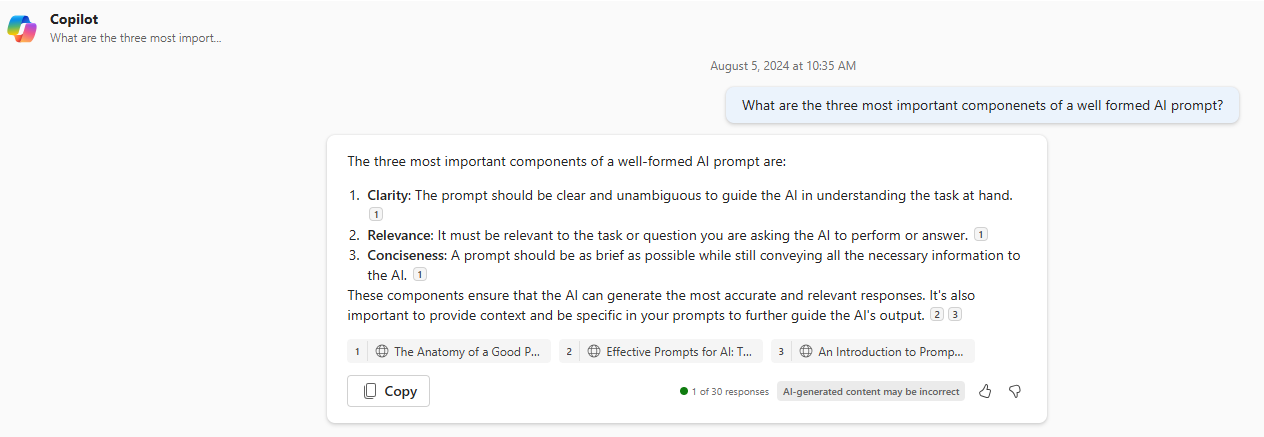
Copilot as a tool is constantly evolving and updating. That means Microsoft is constantly updating their content as well. The most important part of learning how to use any AI assistant is learning how to prompt. Spend time learning how to communicate with your AI by developing clear, relevant and concise prompts. How did I decide that those are the three most important components? Copilot told me.
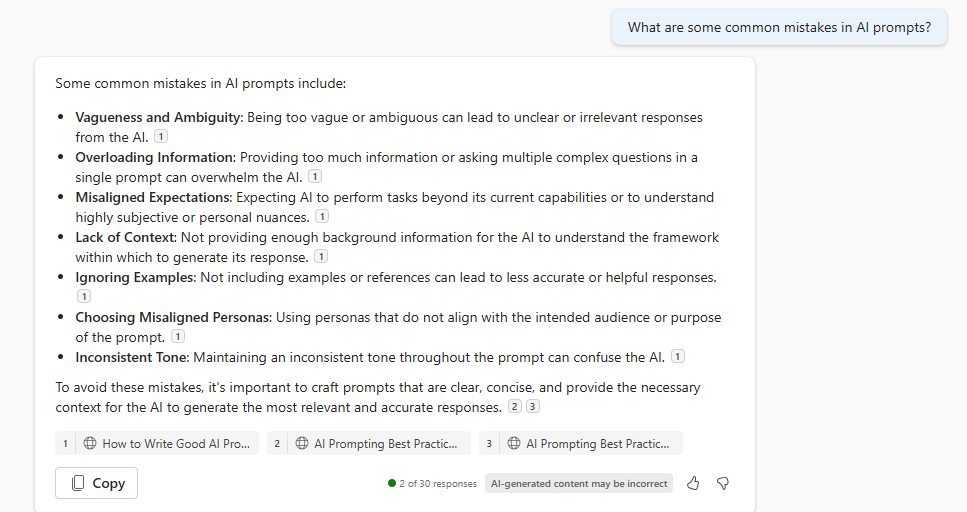
Copilot will also tell you common prompt errors
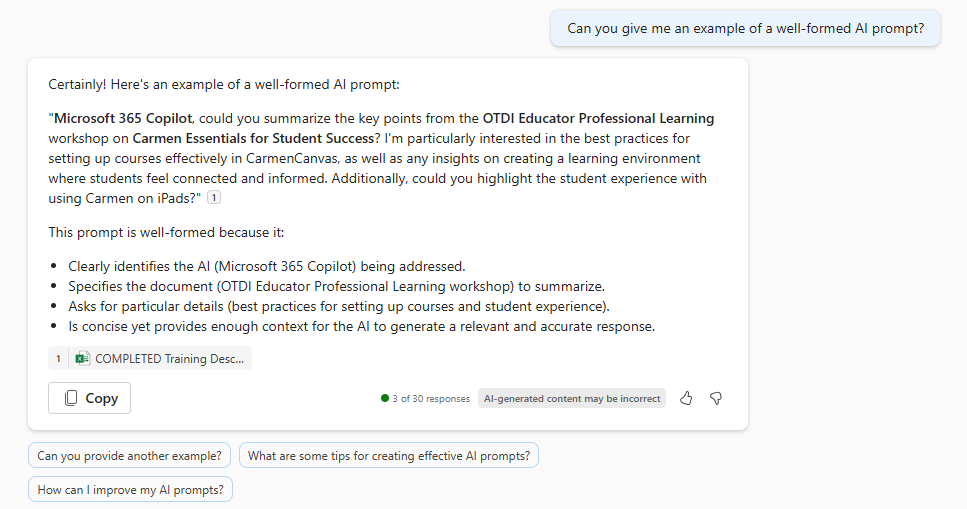
Copilot will also provide an example of a well formed AI prompt.
Resources and Related Services
Learn more about the university's use of artifical intelligence in the classroom and administration.
Frequently Asked Questions
Troubleshooting and Known Issues
Copilot Chat is a different tool that is already part of your educational licensing. Many of the things you can do with Copilot In App can also be done in the Copilot Chat interface. Before you decide you need Copilot in App for an extra cost, see if you can perform the same task in Copilot Chat. If you are uncertain, ask Copilot!
Help
If you have any trouble accessing or using Microsoft Copilot please contact the IT Service Desk 24/7 at 614-688-4357 (HELP), Self Service, or servicedesk@osu.edu.
Security
While Microsoft 365 Copilot (formerly Bing Chat for Enterprise) provides various features to help ensure that it is giving accurate answers, it is important for users to employ a "trust but verify" approach with all AI technologies.
For more information about AI at OSU please see the Artifical Intelligence at Ohio State page.